

/hub in the Workspace.
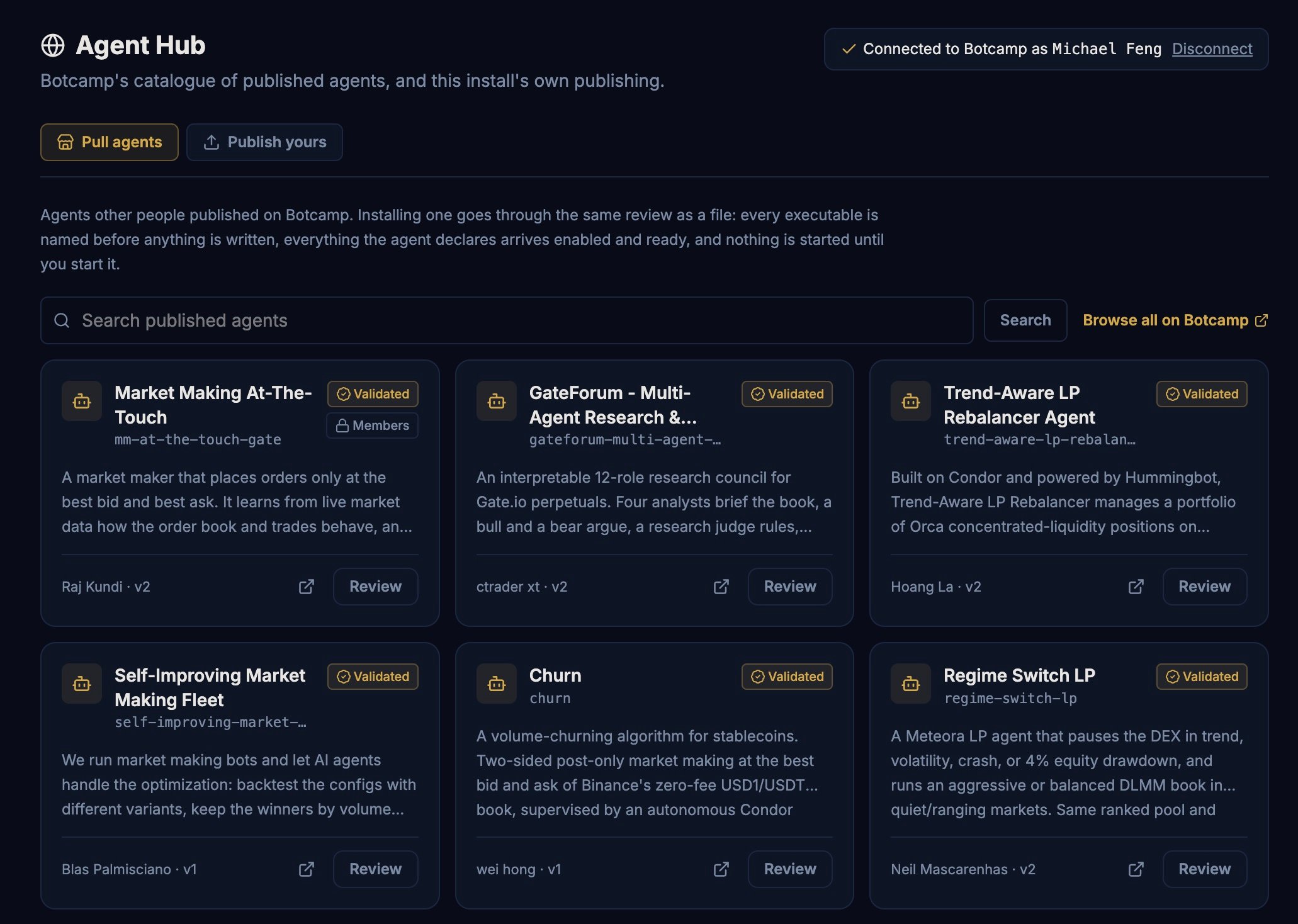
Only an admin of the install can connect Botcamp, pull and publish. Other seats see a prompt to ask an admin.
Connect Botcamp
Botcamp never serves an agent’s code without a sign-in, so connect your install first.1
Get a code
Open botcamp.xyz/connect while signed in to Botcamp. It shows a one-time code.
2
Paste it into Condor
In the Hub, open Pull agents and choose the Botcamp sign-in. Paste the code. The code works once and expires after 10 minutes.
Pull an agent
The Pull agents tab lists what Botcamp has published, newest first. Each card shows the agent’s name, slug, a short description, its author and its latest version.- Validated means the agent passed Botcamp’s AI review and an admin’s check before it was listed.
- Members means pulling the agent needs a Botcamp membership. Most agents are free.
- The link icon on a card opens the agent’s page on Botcamp, with its code, description and demo video.
Review before installing
Nothing is written to your install until you have reviewed it. The review shows:- the agent’s files, grouped into sections you can expand, with a one-line summary on each
- every file that can run code, named before anything is installed
- a banner saying where the agent came from and what has already checked it. Botcamp’s review is the only check that happened, so read the files anyway.
Updates
An installed agent is pinned to the exact version you accepted. When its author publishes a newer version, the Hub offers an update, and you review and accept that version the same way. Nothing changes on your install until you do. If Botcamp delists an agent, copies you already installed keep running and are marked as delisted.Publish yours
The Publish yours tab lists the agents on this install. Choose one to publish it to Botcamp under the connected Botcamp profile. Publishing sends the agent’s files off your machine for review. Botcamp checks the folder’s structure, runs an AI review and then an admin approves it before it appears in the catalogue. You can follow its status on Botcamp. Withdrawing a published agent removes the listing but doesn’t recall copies people already pulled. Don’t put keys or wallet secrets in an agent folder. Botcamp refuses an upload that contains them.See also
- Agents for chatting with an agent you installed
- Agent loops for starting and stopping its loops
- Agent Builder for building your own