

The Server group applies to the server selected in the top bar, and its heading shows that server’s name. The Admin group only appears for Condor’s admin.
Each tab has its own link:
/settings?tab=<key>, where the key is api, gateway, keys, servers, llm, voice, notifications, privacy, admin or updates. Without a tab, Settings opens on Servers.
Owner-only actions. Each server has one owner. Others can be given trader access in Admin. A trader can read a server’s state and trade on it. Changing the server’s configuration needs the owner: keys and wallets, Gateway deploy, restart and stop, RPC settings, bot defaults and the API upgrade. For anyone else, those controls are disabled. Admins can do everything.
Hummingbot API
What the selected server runs, and the defaults for bots deployed from it.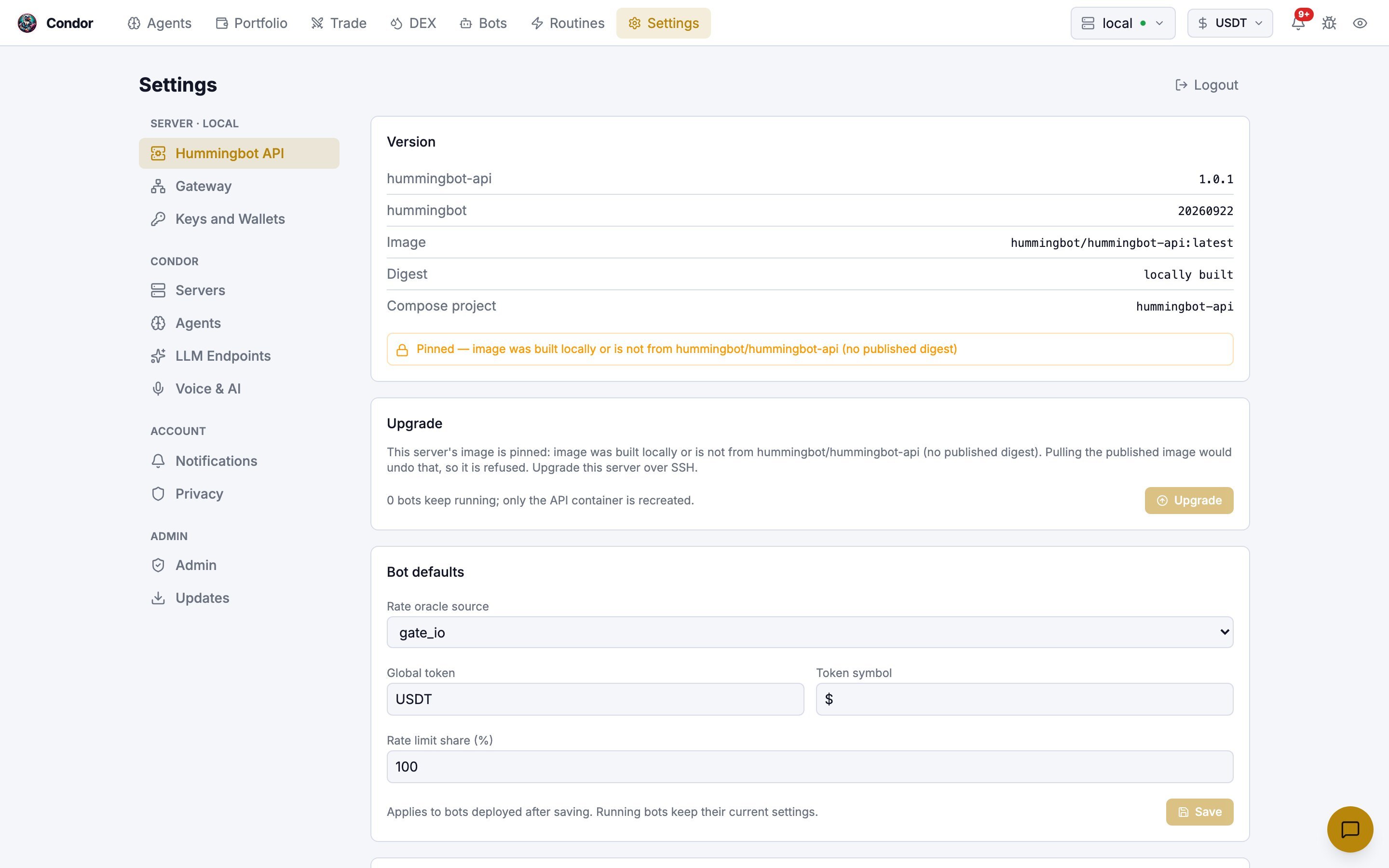
- Version: the
hummingbot-apiandhummingbotversions, the Docker image, its digest (or locally built), and the Compose project. If the image is pinned, the card says so and why. - Upgrade: replaces the API container with the published image. Bots keep running and only the API container is recreated. Click Upgrade, then Upgrade now. If executors are running, you must first tick a box agreeing that they will be closed and not restored. If the server isn’t back within 3 minutes, check
docker compose logs hummingbot-apion the server. There is no rollback. - Bot defaults: the Rate oracle source, Global token and Token symbol, and the Rate limit share (%). They apply to bots deployed after you save. Running bots keep their current settings.
- Market data: the server’s
MARKET_DATA_*settings, read-only. You change them in the server’s.env, and they apply when the API restarts.
Gateway
The Gateway container on the selected server. Gateway gives the API its DEX access. You use it from the DEX page.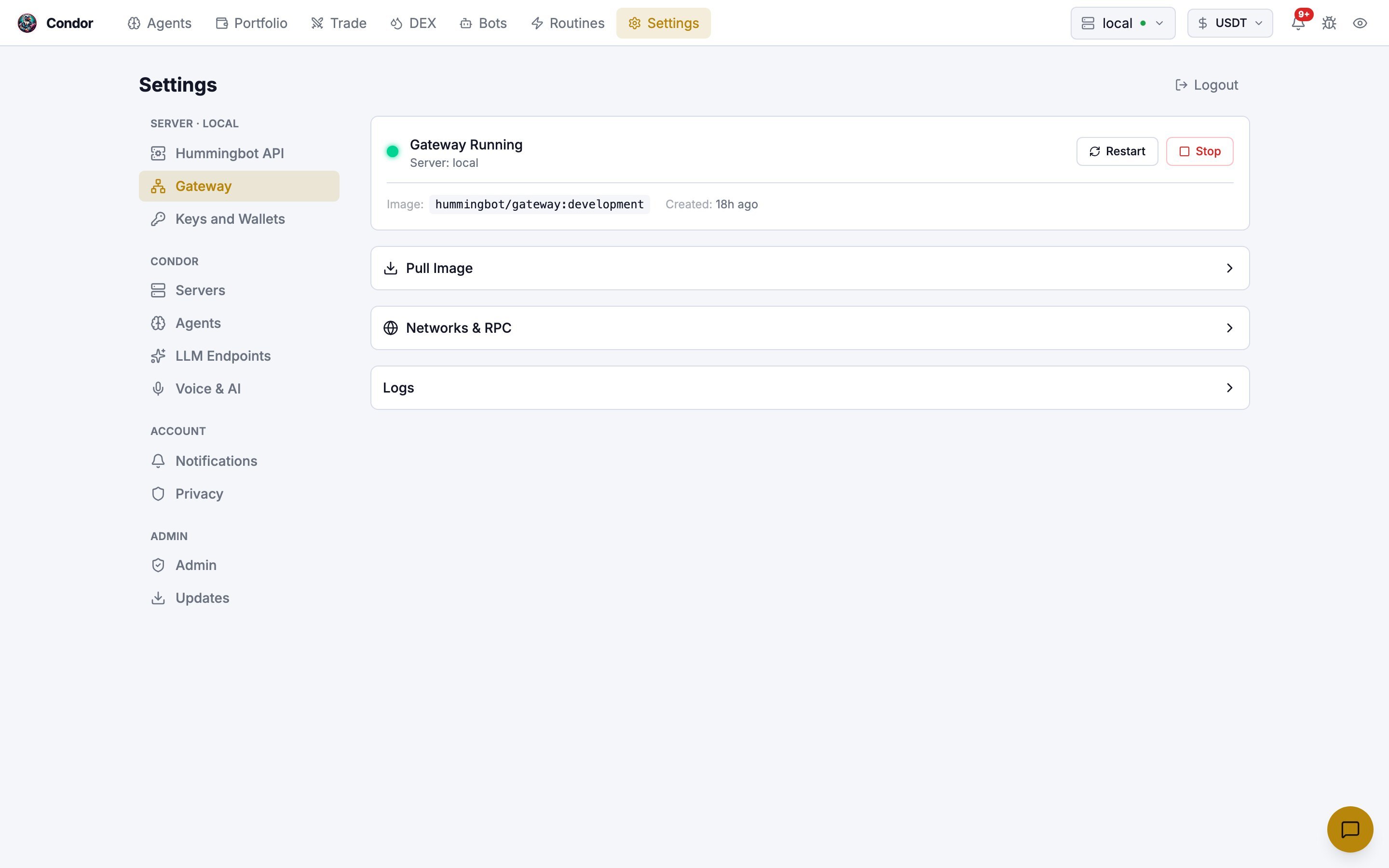
- When Gateway is stopped, Deploy Gateway starts it. Pick the image (Development, Latest or a custom
org/image:tag) and the port (default15888). Gateway runs with TLS and mTLS. The Hummingbot API manages the certificates and passphrase, so you don’t enter one. - When it is running, you see its image and creation time, with Restart and Stop. Stop asks you to confirm.
- Pull Image downloads a Gateway image (Development, Latest or custom) and shows progress.
- Networks & RPC lists each chain’s networks. Expand a network to edit its settings, then click Save. Gateway must be running. Non-owners see the values read-only, with secrets masked.
- Logs shows Gateway’s recent logs.
Keys and Wallets
Exchange API keys and Gateway wallets for the selected server. Keys are stored on the Hummingbot API server, not in Condor.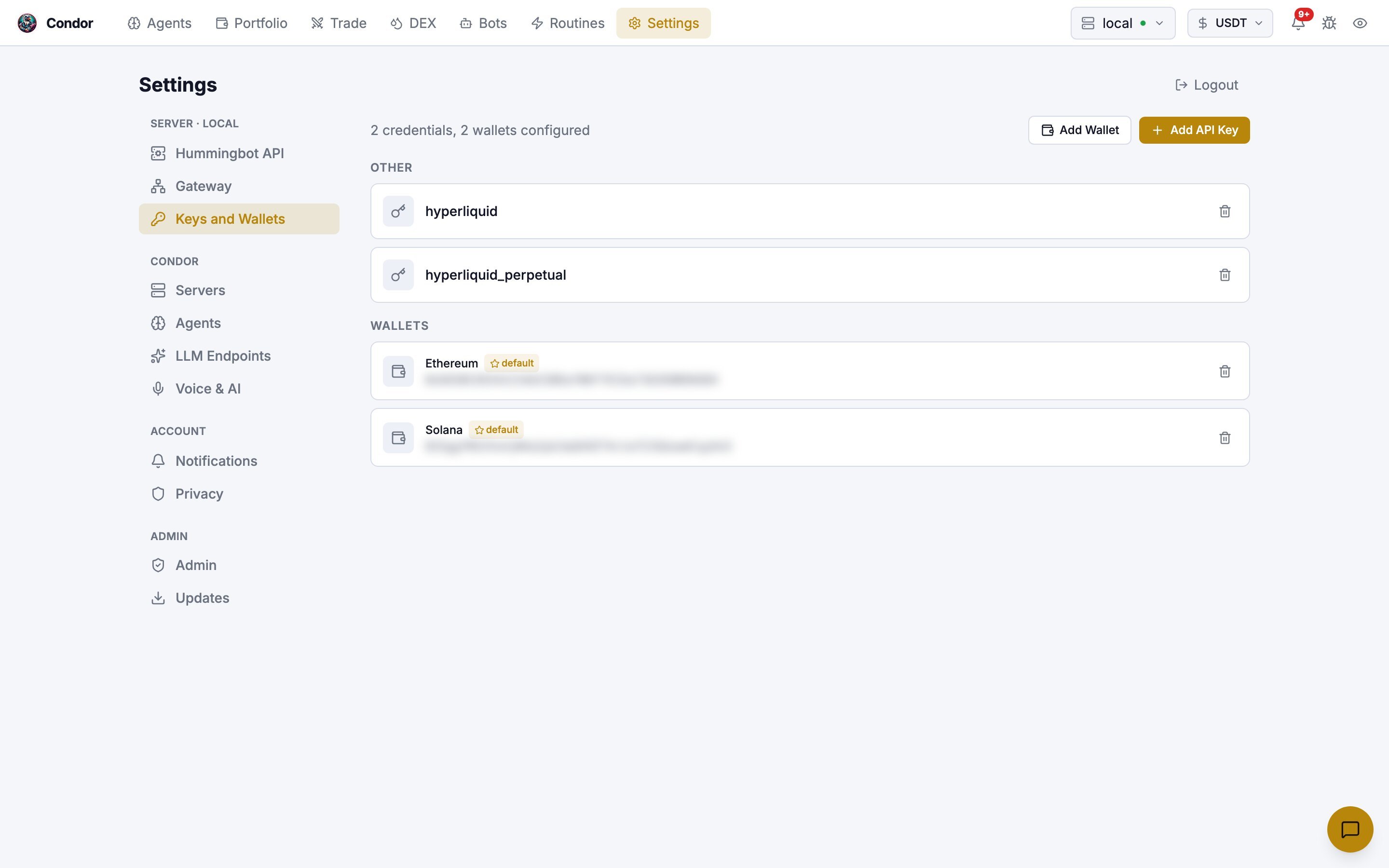
- Add API Key adds an exchange key. Hyperliquid has a one-click Connect Hyperliquid wallet flow instead.
- Add Wallet adds a Solana or EVM wallet to Gateway. It needs Gateway to be running. You can mark one wallet per chain as the default.
Servers
The Hummingbot API servers this Condor can use.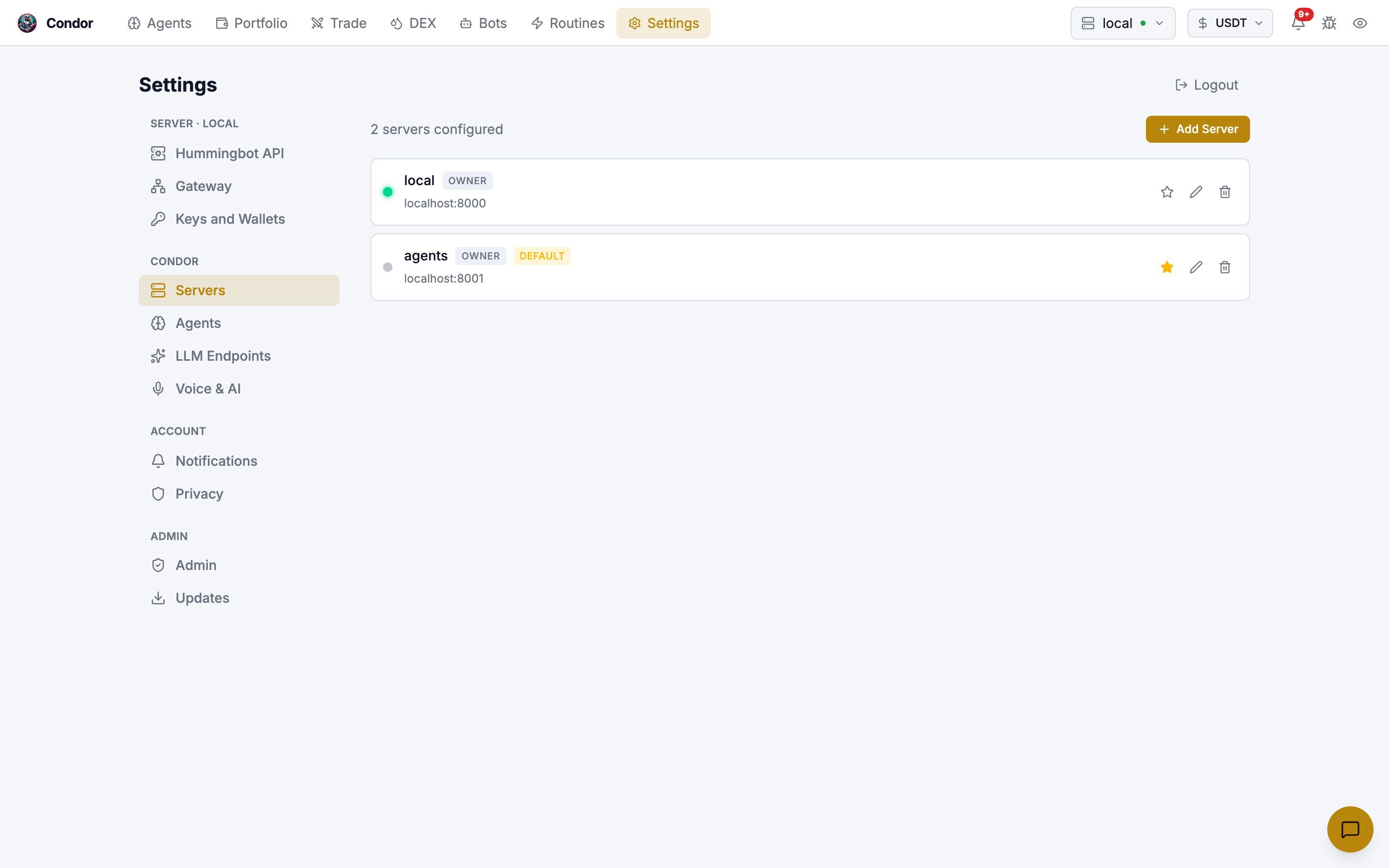
- Add Server asks for a name, host, port, username and password.
- The star sets the default server. Telegram uses the same default.
- Edit and Delete are only shown to the owner.
LLM Endpoints
Custom OpenAI-compatible endpoints, such as Venice AI, Together, Fireworks, or your own vLLM or LM Studio server.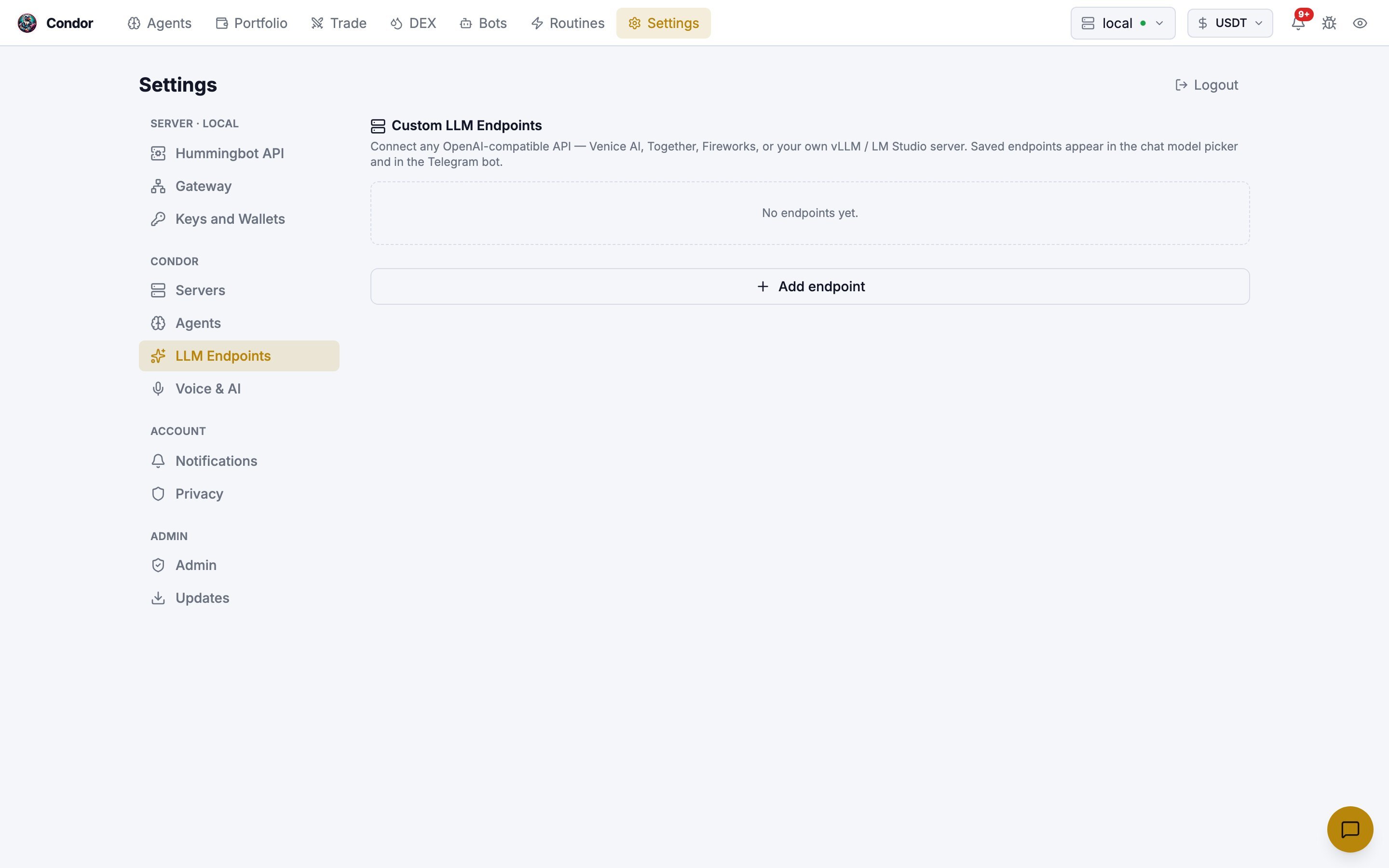
/agent menu. The API key stays on the machine running Condor and is never sent back to the browser. To remove an endpoint, use Forget.
See Custom OpenAI-compatible endpoints.
Voice and AI
The Voice & AI tab sets how voice messages in the chat are handled. Condor transcribes them locally with Whisper.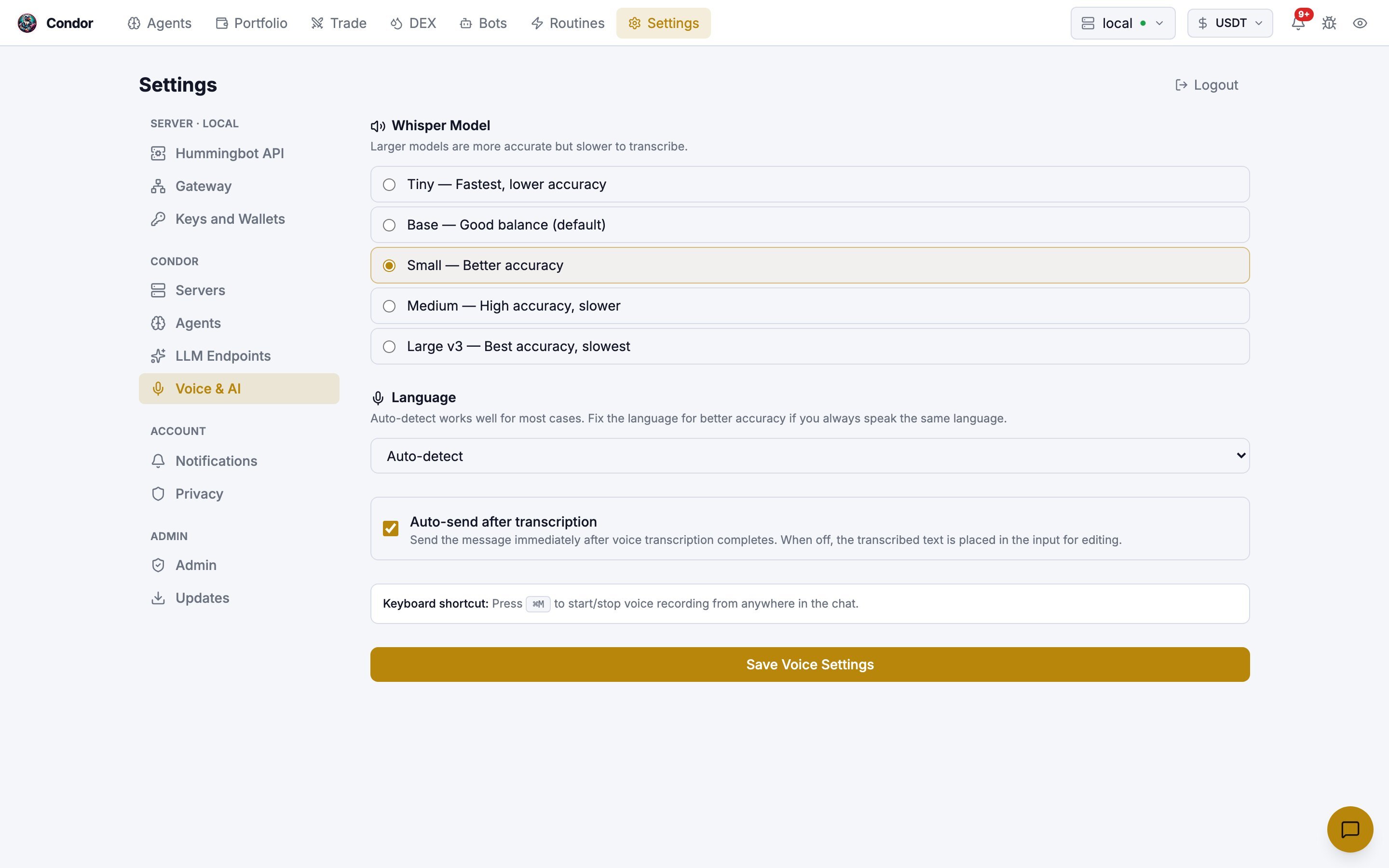
- Whisper Model: Tiny, Base, Small, Medium or Large v3. Larger models are more accurate but slower.
- Language: Auto-detect, or a fixed language for better accuracy.
- Auto-send after transcription: when on, the message is sent as soon as it’s transcribed. When off, the text goes into the message box so you can edit it.
Notifications
Desktop notifications for this browser on this device, using Web Push. Anything that appears in the bell also appears as a system notification, even when Condor isn’t open.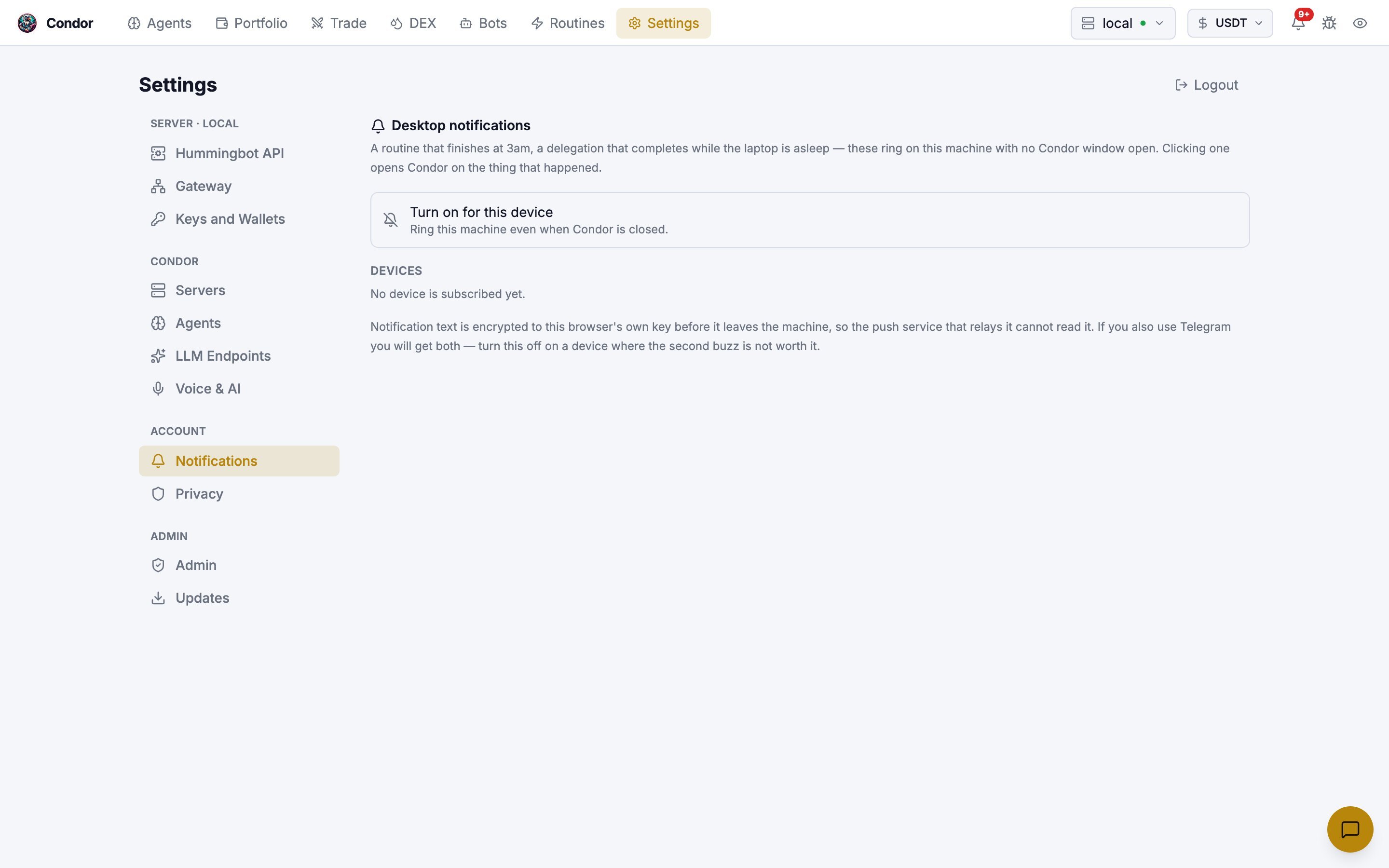
- Click Turn on for this device and allow notifications when the browser asks.
- Devices lists every device subscribed on your account. Remove one to stop notifying it.
localhost and over HTTPS, but not on a plain http://<host>:8088 address. On such an address the tab explains this instead of showing the switch. If you also use Telegram, you get both notifications.
Privacy
Two separate settings: anonymous telemetry for the whole install, and sharing of your own conversations.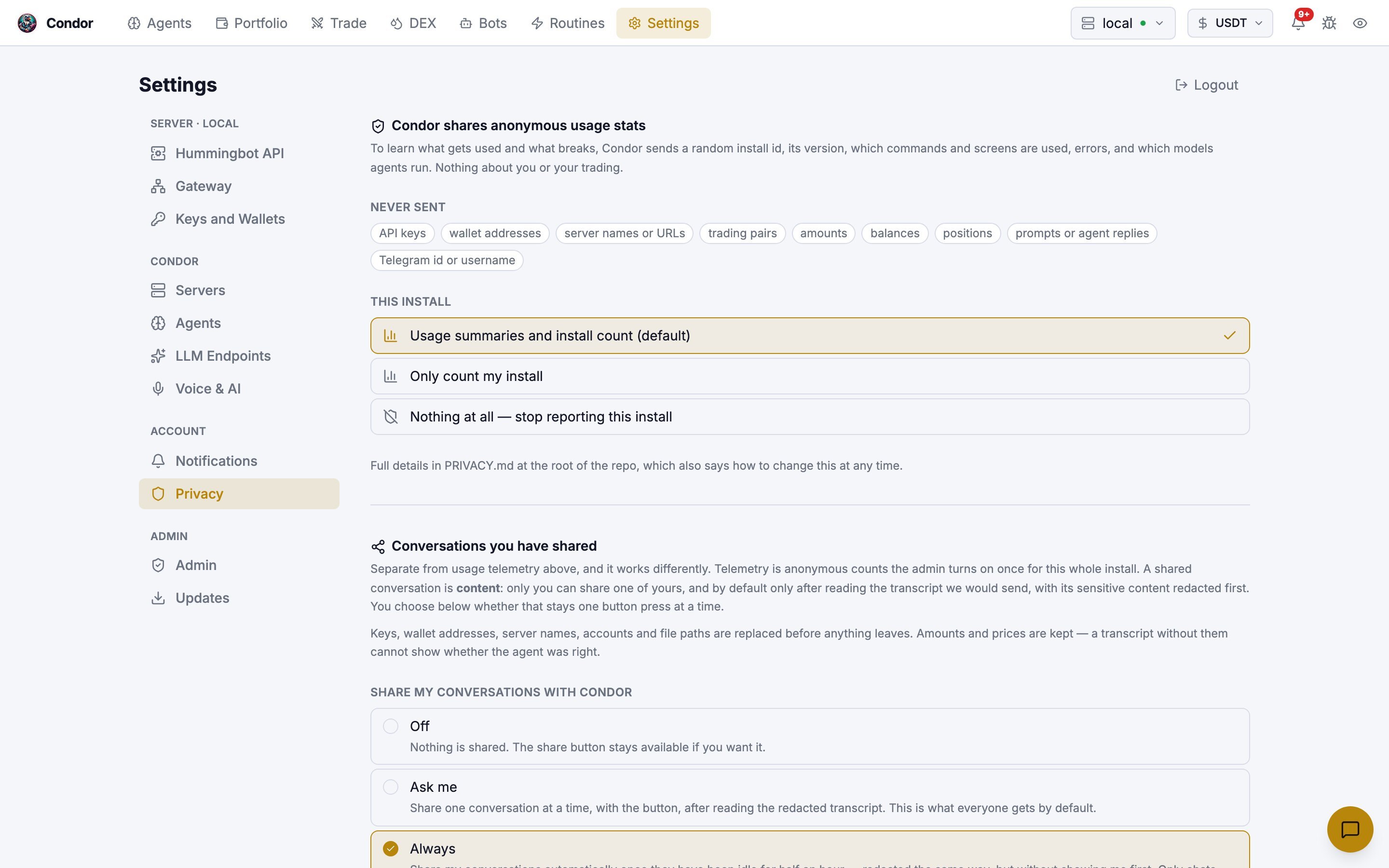
- Usage summaries and install count (default)
- Only count my install
- Nothing at all — stop reporting this install
CONDOR_TELEMETRY is set in the environment, it overrides this setting and the tab says so.
Conversation sharing. You choose whether your conversations are shared with the Condor project:
- Off: nothing is shared.
- Ask me: you share one conversation at a time with the Share button, after reading the redacted transcript.
- Always: conversations are shared automatically once they have been idle for 30 minutes, redacted the same way. This covers only chats started after you choose it, where you are the only person talking, and never one you excluded.
CONDOR_SHARING in the environment overrides that switch.
For the full details, see Privacy: telemetry and sharing.
Admin
Admin only. Everyone who has contacted the bot, and the servers each person can reach.
- People: search by name,
@handleor id. Open a person to set them to Approved or Blocked, or to Reject a pending request. The admin is set byADMIN_USER_ID, not here. - Server access: for each server, set the person to No access or Trader. Ownership is shown but can’t be transferred here. A person must be approved before you can grant access.
- Capabilities: the
code_rungrant lets a non-admin run arbitrary Python in the bot process. That code can reach every server’s credentials, the Workspace’s JWT secret and the environment, so treat it as admin access. - Refresh names asks Telegram for the names of people with no stored name.
- Audit log: the recent approvals, blocks and grants, with who made them.
Updates
Admin only. Updates Condor and the Hummingbot API. This is the same update engine as Telegram’s/update, and only one update runs at a time. A run started in one place shows in the other. On a Local mode install, which has no Telegram bot, this tab is how you update.
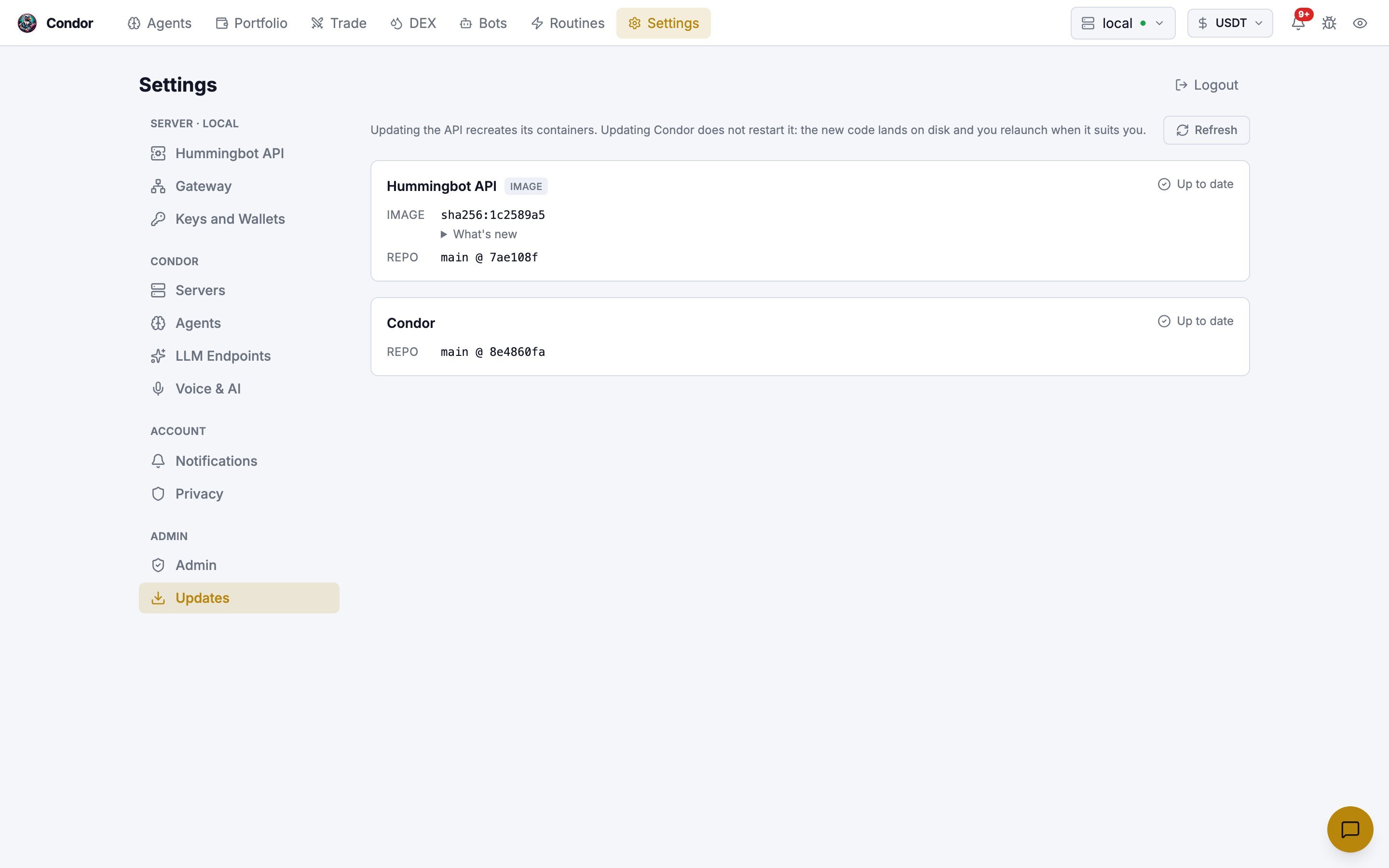
- The tab shows what each component runs and what is available. Version checks are cached for 60 seconds. Refresh checks again.
- Before a run, Condor lists blockers and warnings. A checkout with local changes can be fixed from the tab with Discard or Stash, or with Keep my version when the changes are edits to shipped agents (they move to
.condor/agents/). Other blockers must be fixed by hand. Warnings don’t stop the run. - While it runs, the tab shows each step. Updating the API recreates its containers, so the API may stop answering for a while. The tab keeps checking and picks the run back up. Done clears a finished run.
When an update finishes, a banner counts down from 5 seconds, then restarts Condor and reloads the page. Cancel stops the countdown, and the banner then offers Restart now for when you are ready. See The restart step.
Using Telegram
/servers: the same server list. ➕ Add Server, then set 📝 Name, 🌐 Host, 🔌 Port, 👤 User and 🔑 Pass./keys: read-only. It lists connected exchanges and gives you a 🌐 Open Web Dashboard link, valid for 5 minutes, to add or remove keys here./gateway: Gateway status and configuration./admin: users and access requests./update: the same update flow as Updates.