> ## Documentation Index
> Fetch the complete documentation index at: https://condor.hummingbot.org/llms.txt
> Use this file to discover all available pages before exploring further.
# Trade
> Chart-first manual trading: orders, positions, grids, and DCA on CEX venues
The **Trade** page is a chart-first trading terminal for centralized exchanges. Everything you do here creates an [executor](/executors/overview) — a single supervised operation the API carries out and reports back on.
 ## The pair bar
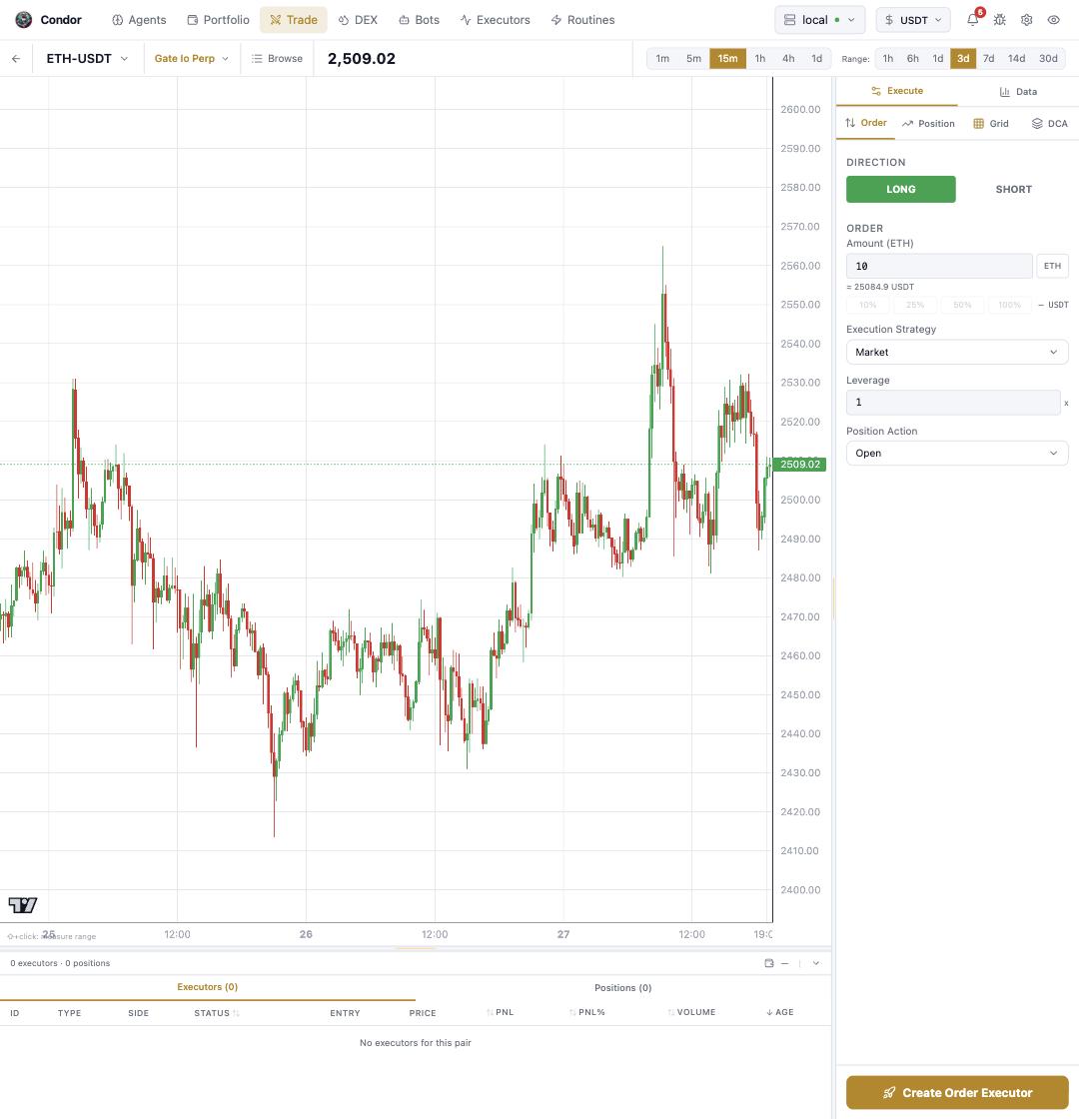
Top left: the **trading pair**, the **connector** it trades on (spot or perp), and **Browse** to search everything the connector lists. Candle interval (`1m`–`1d`) and chart range (`1h`–`30d`) sit above the chart. The chart itself is TradingView — shift-click to measure ranges, and grid boundaries you set in the panel are drawn directly on it.
## The Execute panel
The right panel's **Execute** tab has four builders, one per executor type:
* **Order** — a market or limit order. Set direction, amount (with `%`-of-balance shortcuts and USD notation), execution strategy, leverage, and position action, then **Create Order Executor**.
* **Position** — a position with stop-loss / take-profit attached ([Position Executor](/executors/position-executor)).
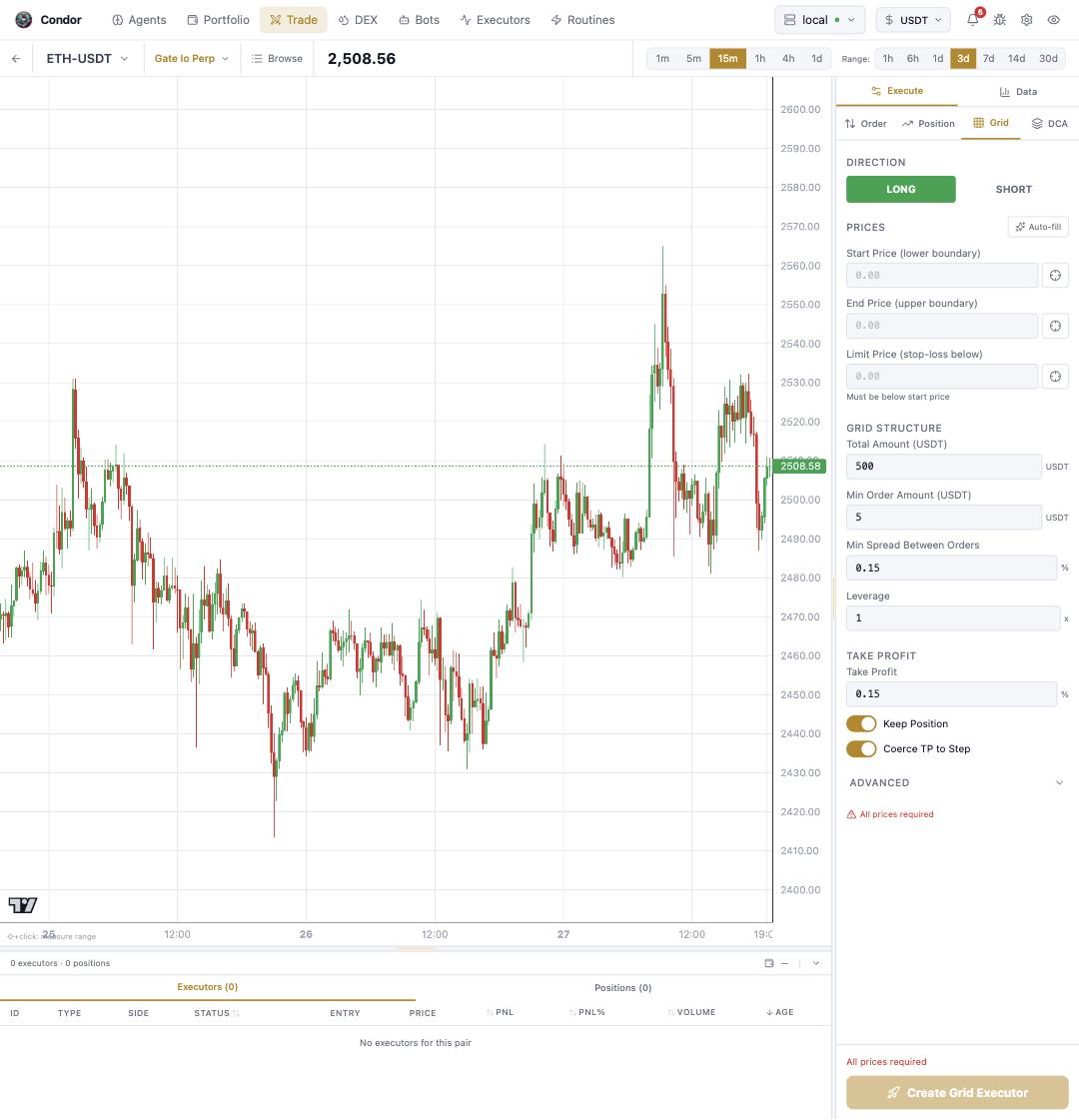
* **Grid** — a grid of orders between a start and end price, with stop-loss boundary, total amount, per-order minimums, spread, leverage, and take-profit per fill. **Auto-fill** proposes boundaries from the chart ([Grid Executor](/executors/grid-executor)).
* **DCA** — laddered entries over time ([DCA Executor](/executors/dca-executor)).
## The pair bar
Top left: the **trading pair**, the **connector** it trades on (spot or perp), and **Browse** to search everything the connector lists. Candle interval (`1m`–`1d`) and chart range (`1h`–`30d`) sit above the chart. The chart itself is TradingView — shift-click to measure ranges, and grid boundaries you set in the panel are drawn directly on it.
## The Execute panel
The right panel's **Execute** tab has four builders, one per executor type:
* **Order** — a market or limit order. Set direction, amount (with `%`-of-balance shortcuts and USD notation), execution strategy, leverage, and position action, then **Create Order Executor**.
* **Position** — a position with stop-loss / take-profit attached ([Position Executor](/executors/position-executor)).
* **Grid** — a grid of orders between a start and end price, with stop-loss boundary, total amount, per-order minimums, spread, leverage, and take-profit per fill. **Auto-fill** proposes boundaries from the chart ([Grid Executor](/executors/grid-executor)).
* **DCA** — laddered entries over time ([DCA Executor](/executors/dca-executor)).
 ## The Data tab
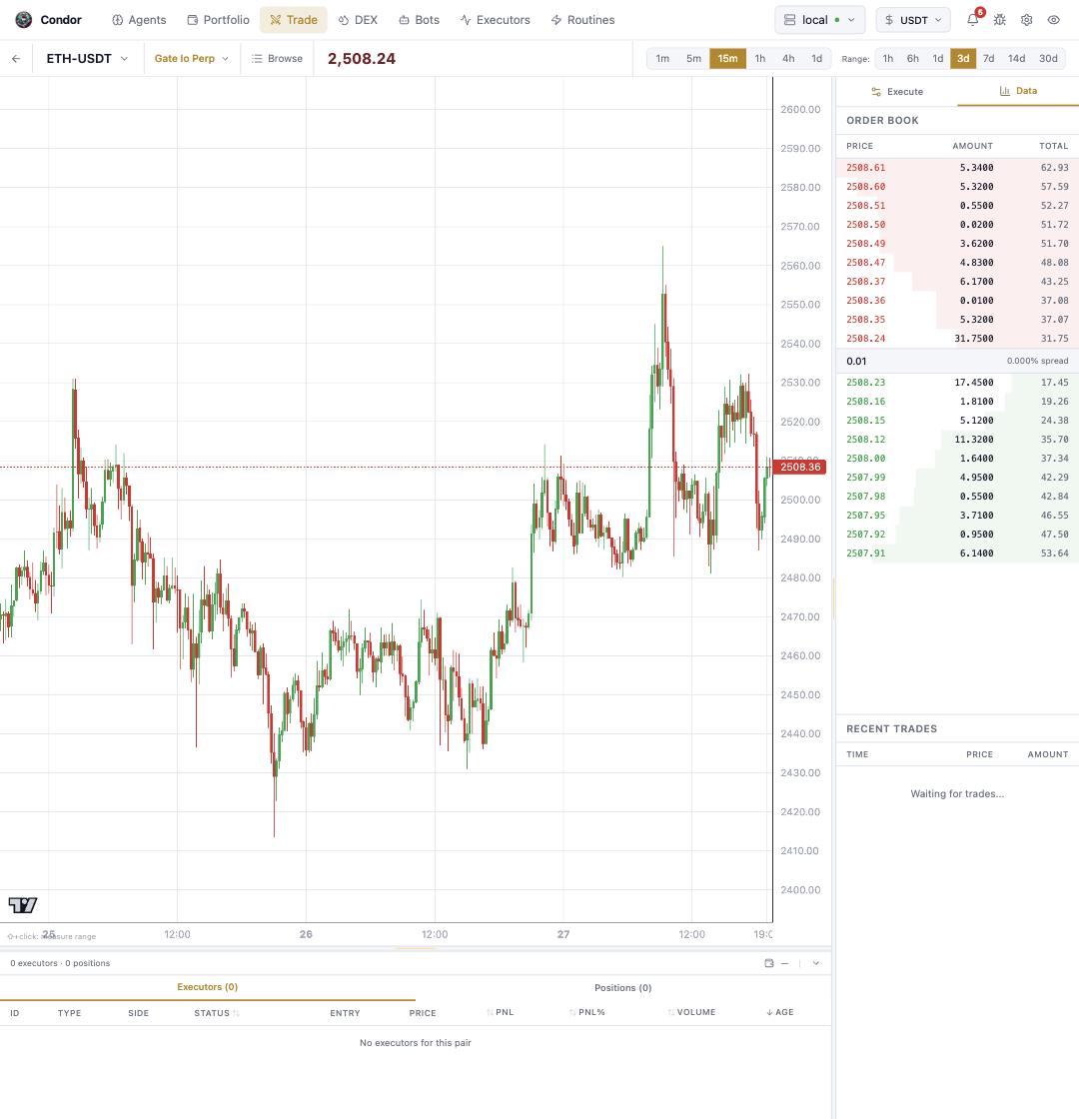
**Data** swaps the builder for the live **order book** (with spread) and **recent trades** for the selected pair.
## The Data tab
**Data** swaps the builder for the live **order book** (with spread) and **recent trades** for the selected pair.
 ## The bottom tray
Below the chart, two tables scoped to the current pair: **Executors** (live and recent, with entry, PNL, and volume) and **Positions**. This is where what you just created reports in.
## Supported exchanges
| Exchange | Spot | Perpetual |
| --------------- | ---- | --------- |
| **Binance** | Yes | Yes |
| **Bybit** | Yes | Yes |
| **OKX** | Yes | Yes |
| **Kucoin** | Yes | Yes |
| **Gate.io** | Yes | Yes |
| **Kraken** | Yes | No |
| **Coinbase** | Yes | No |
| **Hyperliquid** | No | Yes |
Any connector with credentials under [Settings → Keys and Wallets](/webui/settings#keys-and-wallets) shows up in the connector picker.
## Using Telegram
**`/trade`** (and its alias **`/swap`**) opens one unified trading menu covering **CEX and DEX** venues. Pick the venue and pair, build the order with toggle buttons (side, order type, position mode) and text input — `$100` converts USD to token units — then **📊 Quote** before **✅ Execute**. The same menu reaches **📋 Orders** (view, filter, cancel) and **📊 Positions** (view, close with confirmation), and perpetual venues get leverage and position-mode controls.
## Using Hummingbot API
The builders create executors, but the API also places orders directly — no executor, no exit conditions, no per-agent attribution:
```bash theme={null}
# Market order
curl -u YOUR_USERNAME:YOUR_PASSWORD -X POST http://localhost:8000/trading/orders \
-H "Content-Type: application/json" \
-d '{
"account_name": "master_account",
"connector_name": "binance",
"trading_pair": "BTC-USDT",
"trade_type": "BUY",
"amount": 0.001,
"order_type": "MARKET"
}'
# Cancel — account, connector, and client order id in the path
curl -u YOUR_USERNAME:YOUR_PASSWORD -X POST \
http://localhost:8000/trading/master_account/binance/orders/{client_order_id}/cancel
# Leverage (perpetual)
curl -u YOUR_USERNAME:YOUR_PASSWORD -X POST \
http://localhost:8000/trading/master_account/binance_perpetual/leverage \
-H "Content-Type: application/json" \
-d '{"trading_pair": "BTC-USDT", "leverage": 5}'
```
Reach for direct orders for quick manual trades; reach for [executors](/executors/overview) when you want automatic exits (TP/SL/time) and P\&L tagged to whoever created it.
## Learn more
* [Executors](/executors/overview) — every executor type in depth
## The bottom tray
Below the chart, two tables scoped to the current pair: **Executors** (live and recent, with entry, PNL, and volume) and **Positions**. This is where what you just created reports in.
## Supported exchanges
| Exchange | Spot | Perpetual |
| --------------- | ---- | --------- |
| **Binance** | Yes | Yes |
| **Bybit** | Yes | Yes |
| **OKX** | Yes | Yes |
| **Kucoin** | Yes | Yes |
| **Gate.io** | Yes | Yes |
| **Kraken** | Yes | No |
| **Coinbase** | Yes | No |
| **Hyperliquid** | No | Yes |
Any connector with credentials under [Settings → Keys and Wallets](/webui/settings#keys-and-wallets) shows up in the connector picker.
## Using Telegram
**`/trade`** (and its alias **`/swap`**) opens one unified trading menu covering **CEX and DEX** venues. Pick the venue and pair, build the order with toggle buttons (side, order type, position mode) and text input — `$100` converts USD to token units — then **📊 Quote** before **✅ Execute**. The same menu reaches **📋 Orders** (view, filter, cancel) and **📊 Positions** (view, close with confirmation), and perpetual venues get leverage and position-mode controls.
## Using Hummingbot API
The builders create executors, but the API also places orders directly — no executor, no exit conditions, no per-agent attribution:
```bash theme={null}
# Market order
curl -u YOUR_USERNAME:YOUR_PASSWORD -X POST http://localhost:8000/trading/orders \
-H "Content-Type: application/json" \
-d '{
"account_name": "master_account",
"connector_name": "binance",
"trading_pair": "BTC-USDT",
"trade_type": "BUY",
"amount": 0.001,
"order_type": "MARKET"
}'
# Cancel — account, connector, and client order id in the path
curl -u YOUR_USERNAME:YOUR_PASSWORD -X POST \
http://localhost:8000/trading/master_account/binance/orders/{client_order_id}/cancel
# Leverage (perpetual)
curl -u YOUR_USERNAME:YOUR_PASSWORD -X POST \
http://localhost:8000/trading/master_account/binance_perpetual/leverage \
-H "Content-Type: application/json" \
-d '{"trading_pair": "BTC-USDT", "leverage": 5}'
```
Reach for direct orders for quick manual trades; reach for [executors](/executors/overview) when you want automatic exits (TP/SL/time) and P\&L tagged to whoever created it.
## Learn more
* [Executors](/executors/overview) — every executor type in depth